Soyjak Wiki:Navigation Popups


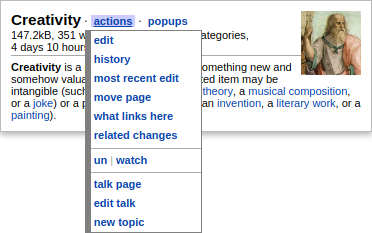
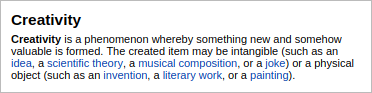
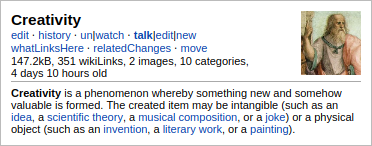
Navigation Pop Ups is an available opt-in Soyjak Wiki Gadget that offers pop up previews of pages and several functions when hovering through links in Articles.
Features
[edit | edit source]The list of Features goes as follows;
- Mouseover tooltips on articles (including user pages):
- Preview the first part of the article text when mousing over a link to an article
- Preview the first image in the article
- If there is an infobox with an image, and it is not a Wikidata-powered infobox, the image in the infobox will be taken as the first image.
- The image shown in the preview can be controlled by adding an image hint to the article, in the form of an invisible HTML comment:
<!-- popup [[File:Desired_Preview_Image.jpg]] -->.
- Preview selected user information [user/user talk namespace]: pronoun preference, user groups, edit count, account registration date, date of most recent edit
- Preview selected page information: size, number of links, number of images, number of categories and page age
- Tells you about redirects, stubs and disambiguation pages
- One click access to edit page, page history, most recent edit, edits by most recent contributor,[a] changes since my edit,[a] move page, what links here, related changes, watch or unwatch, protect or unprotect (for administrators), talk page, edit talk page and start new topic in talk page
- See the Wikidata QID for the target page, if one exists
- Mouseover on image links:
- Preview images
- Preview file descriptions
- Preview file links
- Tells you if the image is on Commons
- Mouseover on user links:
- One-click access to user page, user space, user talk, edit user talk, new section in user talk, e-mail user, contributions and contributions tree, (for administrators) deleted user contributions, user log, (for administrators) block user, edit counter (User Analysis Tool), block log
- Mouseover on footnotes:
- Preview contents of footnotes
- Mouseover on any wikilink:
- Preview diffs and access both revisions in watchlist, history and related changes
- Preview selected wikilinks when editing (use the mouse to select one wikilink)
- One-click revert of vandalism from history browser (see image)
- Shortcut keys (optional)
- Automatically fix links to bypass redirects and disambiguation pages (optional)
- Should work on all Wikimedia wikis
Usage Guide
[edit | edit source]Holding the shift key on a hovored pop-up moves it around.
Popups depend on the type of link:
- Links to ordinary articles: popup provides a preview of the first paragraph and image of the article; the Actions menu allows to view the History and Talk page of the article, to edit and watch the article etc.
- In the edit box: Highlight a [[wiki link]] to get an article popup.
- Diff links: On history or watchlist pages, hover over diff links like "(cur)" or "(prev)" to get a summary of the difference; the Actions menu allows you to revert or undo the edit.
- User: links: information about the status of the user; User menu gives access to Talk page, recent contributions etc.
- Image links: information from image's description page
- In popups: most of the links in popup windows will open new popups when hovered over.
Optional Configuration
[edit | edit source]
Seven optional structures
[edit | edit source]There are seven built-in style variations: shortmenus (default), menus, lite, original, nostalgia, fancy, fancy2.
- To change your selection, see the two
popupStructurebits in the #Options just below. - For more specific details on each, see /Structure examples.
-
Shortmenus (default)
-
Menus
-
Lite
-
Original
-
Nostalgia
-
Fancy
-
Fancy2


.png)


Changing the appearance of your popups
[edit | edit source]By editing your user CSS file, you can change the appearance of the popups. Your user CSS file has exactly the same name as the JavaScript file, but with "css" instead of "js" at the end. So you should edit your current skin's .css page.
Here is an example that makes the text a bit bigger.
.navpopup {font-size: 0.875em !important;}
.popup_menu {margin-top: 1.1em !important;}
Here is an example which gives an orange-flavoured popup with a border and changes the font used. This makes the popups look pretty silly, but it shows the sort of thing you can do if you feel like it.
.navpopup {
  background-color: #FFBE20  !important;
  font-family:      serif    !important;
  color:            #404     !important;
  font-size:        medium   !important;
}
Options
[edit | edit source]There are some options that you can set. To do so, edit your user JavaScript file and add a line of the form window.option = value; where option and value are chosen from the table below. For example, to turn on extensive menus and turn on admin links, you need to add something like this in your JavaScript file:
window.popupStructure = 'menus';
window.popupAdminLinks = true;
Do not place apostrophes around the values true, false, null and numbers.
| Option | Values Default in
bold
|
Description |
|---|---|---|
| General | [] | |
| Basic | ||
popupDelay
|
0.5
|
The number of seconds before popups appear. |
popupHideDelay
|
0.5
|
The approximate number of seconds between the mouse leaving a popup and its disappearance. |
simplePopups
|
true, false
|
If you just want the links or find the amount of bandwidth consumed too great, then set this to true. No data will be downloaded and the popups will just consist of a list of links unless you set one of the following options to true: popupUserInfo, popupPreviewDiffs, popupPreviewHistory, popupCategoryMembers, imagePopupsForImages.
|
popupStructure
|
'original', 'fancy', 'fancy2', 'menus', 'shortmenus'
|
Select the structure of the popups – view example screenshots. The 'original' setting, which is the default if simplePopups is true (or if your browser is known not to support menus), has all the navigation links in the popup itself; 'nostalgia', 'fancy' and fancy2 are variants of this. The 'shortmenus' setting, which is the default if simplePopups is not true, puts the navigation links in popup menus which appear when you mouseover the links beside the popup title. 'menus' is a more extensive version of 'shortmenus' with more links. Finally, 'lite' is a very simple structure, with just the preview and no navigation links at all. Note that to set this variable, you need to include the single quotes, e.g. |
popupActionsMenu
|
true
|
When using menus, you can either have the title link in the popup generating a menu (if this is set to false) or a separate "actions" menu (if this is set to true, the default).
|
popupAdminLinks
|
true, false
|
Links to block people, delete pages and protect or unprotect pages are by default only available to administrators. Use this variable to override the default behavior. |
popupShortcutKeys
|
true, false
|
If this variable is set to true then you can focus some of the links in the popups quickly by pressing keys. When you hover the mouse over a link with a shortcut, the shortcut key appears at the end of the popup hint. For example, in Firefox or Opera, to quickly edit an article in a new tab you can type 'e Control-Enter'. Pressing escape should hide the popup, too.
|
popupHistoricalLinks
|
true
|
When hovering over links to old revisions and diff links, extra links such as "editOld" are generated if this is true. Otherwise, you get the same links as when hovering over an ordinary link.
|
popupOnlyArticleLinks
|
true
|
If true, then popups are only generated for links in the article. Otherwise, many other links (such as Edit, Help) get popups too.
|
popupMaxWidth
|
350
|
The maximum width of the popup in pixels. Setting this to false means the popup will expand to accommodate its contents.
|
popupInitialWidth
|
an integer or false
|
The initial width of the popup in pixels. Setting this to false means the popup will initially be the size needed to accommodate its initial contents.
|
popupTocLinks
|
true, false
|
Whether or not to create popups for the Table of content items. Set true to create popups for table of content.
|
popupSubpopups
|
true
|
If this is true then popups are generated for links in previews.
|
popupDragHandle
|
false
|
The name of an element by which the popup can be dragged without holding the shift key. If false, then the popup can be dragged using the shift key instead.
|
popupAllDabsStubs
|
true, false
|
If this variable is set to false then only pages that look like stubs or disambiguation pages in the article namespace are treated specially. (Setting this to true can lead to lots of false positives).
|
popupAdjustDiffDates
|
true
|
If true, then dates in history, diff and user contributions previews are adjusted according to the settings in your user preferences. |
popupModifier
|
false
|
Lets popups only appear when pushing a modifier key while hovering over the links. This prevents unintentional popups that hide page content. |
| Images | ||
popupImages
|
true
|
If this is false then images are never displayed.
|
imagePopupsForImages
|
true
|
By default, preview images are loaded even when hovering over visible images. Setting this to false turns that off. If simplePopups is set to true, then the default value for this option is false.
|
popupThumbAction
|
"imagepage"
|
This controls what happens when you click the image in a preview. "imagepage" takes you to the image page (and will generate a subpopup when you hover over the image), unless the popup is generated for the image page; "sizetoggle" means the image size is toggled on click, and "linkfull" means that the image links directly to the full size version.
|
| Redirs, Dabs, Reversion | ||
popupFixRedirs
|
true, false
|
If this variable is set to true then you can automatically "fix" links to redirect pages by clicking on the "Redirects" link. Note: You probably don't want to "fix" such links every time you come across them, and you definitely don't want to go on a hunt for them to "fix" them. See the About fixing redirects subpage.
|
popupRedirAutoClick
|
'wpDiff'
|
The button which is automatically pressed when fixing redirects. If set to 'wpSave' you do not need to confirm the change.
|
popupFixDabs
|
true, false
|
If this variable is set to true then you can automatically "fix" links to disambiguation pages by clicking one of the links at the very bottom of the popup.
|
popupDabsAutoClick
|
'wpDiff'
|
The button which is automatically pressed when fixing (or removing) links to disambiguation pages. If set to 'wpSave' you do not need to confirm the change.
|
popupRedlinkRemoval
|
true, false
|
If this variable is set to true then you can automatically remove links to non-existent pages (so-called "red links") by selecting "Remove this link".
|
popupRedlinkAutoClick
|
'wpDiff'
|
The button which is automatically pressed when removing red links. If set to 'wpSave' you do not need to confirm the change.
|
popupWatchDisambiggedPages
|
true, false, null
|
If this variable is set to true then fixed dab pages will always be watched; if it's false, then they'll always be unwatched. If it's null, then the page will be watched or unwatched according to the settings in your user preferences.
|
popupWatchRedirredPages
|
true, false, null
|
If this variable is set to true then fixed redirect pages will always be watched; if it's false, then they'll always be unwatched. If it's null, then the page will be watched or unwatched according to the settings in your user preferences.
|
| Navlinks | ||
popupNavLinks
|
true
|
If this is true then navigation links are displayed. If false, then these are switched off.
|
popupLastEditLink
|
true
|
Whether the popup should contain a "most recent edit" link. |
popupEditCounterTool
|
"supercount"
|
The edit counter tool to use or a custom url defined by popupEditCounterUrl.
|
popupEditCounterUrl
|
""
|
The url for a custom edit counter. You can use replaceable parameters in this url: $1 will be replaced with the username, and $2 with the database name (for example, enwiki_p). |
| Previews, etc. | ||
popupPreviews
|
true
|
If this is true and you haven't set simplePopups, then a preview of the first part of the article will appear. (Reports of pages for which this is done badly are most welcome). If false, then this is switched off.
|
popupSummaryData
|
true
|
If this is true summary data for the target page is displayed. If false, then this is switched off.
|
popupUserInfo
|
true
|
If set to true show user info when the target page is in a user's or user talk's namespace. If simplePopups is set to true, then the default value for this option is false.
|
popupLastModified
|
true
|
If true then the age of the page is displayed in the summary data. This is the amount of time that has elapsed since the article was edited. |
| Diffs | ||
popupDiffDates
|
true
|
If true, the dates of the revisions being compared are shown when previewing diffs.
|
| Misc. | ||
popupOnEditSelection
|
true, false, 'cursor'
|
If this is true then popups are generated for selected wikilinks when editing.
|
popupImageLinks
|
true
|
If true, pages linking to an image should appear in the preview. This currently does not work for commons images.
|
popupShowGender
|
true
|
If true, a gender symbol is displayed in popups showing user info.Soyjak Wiki:Navigation Popups/Edit summary optionsSoyjak Wiki:Navigation Popups/Preview optionsSoyjak Wiki:Navigation Popups/Technical optionsSoyjak Wiki:Navigation Popups/Experimental options
|
More options may be added, and requests for more configurability are welcome.
Advanced customization
[edit | edit source]Adding filters
[edit | edit source]You can define custom filters for articles. These are JavaScript functions which are run after the page statistics are generated, and their output is appended (as HTML) to that part of the popup. (Note that if simplePopups is true or popupSummaryData is false, then nothing will be displayed.)
The way to set this up is to write a filter function which accepts a string (the wikitext of the article) as input, and returns a fragment of HTML. Repeat for as many filters as you want, and then create an array extraPopupFilters which contains all of the functions, in the order in which you want them to be run.
For example, let's say you want to be told whenever the wikitext of an article contains a table written using HTML tags rather than wiki markup. One way to do this is to add the following to your user JavaScript file:
// initialize the array - only do this once
window.extraPopupFilters = [];
// define the function
function popupFilterHtmlTable (wikiText) {
if (/<table/i.test(wikiText)) return '<table>';
else return '';
};
// add the function to the array (you can repeat this for lots of functions)
extraPopupFilters.push(popupFilterHtmlTable);
Then when a popup is generated for a page containing an HTML table, you should see <table> in the popup. (It may also appear for other pages, such as this page. Correcting this defect is left as an exercise for the reader.)
Other examples
[edit | edit source]If you want to enable popupRedlinkRemoval, popupFixRedirs and popupFixDabs features in all pages except the special ones, histories and previews (where those features are obviously useless) you can add these lines to your user JavaScript file:
// Normally features are enabled
var toFix = true;

// In special pages, histories and previews disable them
if ( mw.config.get( 'wgCanonicalNamespace' ) === 'Special' ||
 $.inArray( mw.util.getParamValue( 'action' ), [ 'history', 'submit' ] ) !== -1 )
{
 toFix = false;
}
//
window.popupRedlinkRemoval = toFix;
window.popupFixRedirs = toFix;
window.popupFixDabs = toFix;