
AI video guide


 This page is a gem.
This guide explains how to use Generative AI to turn still images into moving videos and GIFs, and provides the best tools and resources for achieving these results. These types of image to AI videos are used most commonly by Gigas and Frogs, but can also be used for soyjaks or any image.
Getting a base image[edit | edit source]
The first step of making an image to AI video is getting the base image. All AI Image-To-Video generators need to have a base image to use as the first frame of the generated video. That is what we call the base image.
It is your choice on what to use for the base image. You can also generate an new image or AI edited image using an AI image generator, which are more common than AI Image-To-Video generators. Most AI generators have a filter for sensitive content, so keep that in mind when picking a base image and the prompt. You may have to reword the prompt, pick a different image or regenerate to get a generation. For images with transparent backgrounds, it is recommended to fill it in with a background of your choosing because it will make the background black, as videos don't support transparency.
You can also generate longer videos by generating a video, screencapping the last frame and putting it back in the AI.
Templates[edit | edit source]
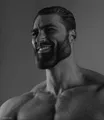
Due to most AI Image-To-Video videos on the sharty being about Gigas and Frogs, this section will provide template base images for both of those. Photorealistic images (like Gigachad, Pepelaugh and IRL soyjaks) work best, and drawings (Soyjaks and the original pepe) don't work well.
-
-
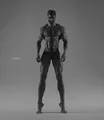 Full body standing
 -
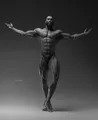 Arms extended pose
 -
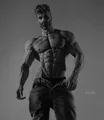 Full body leaning
 -
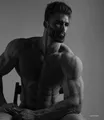 Sitting


-
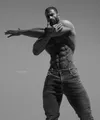 Stretching
 -
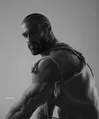 Sitting 2
 -
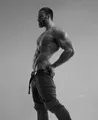 Side pose
 -
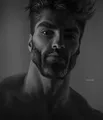 Closeup
 -
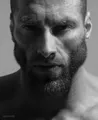 Closeup 2
 -
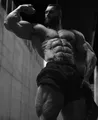 Below angle pose


-
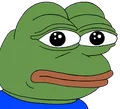 The original
 -
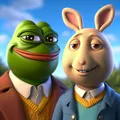 Base image for most of AI Frogs
 -
KEK!


-
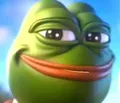 Frame 1 of Pepelaugh
 -
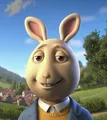 This isn't a frog.
 -
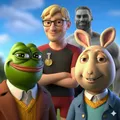 Nate, Pepe, Buster and Gigachad
 -
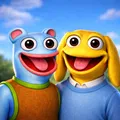 Andy and Blepe


Generating a video[edit | edit source]

Once you get a base image, you need an Image-To-Video generator. This will turn your base image into a animated video, usually being about 5-15 seconds. At this stage, a prompt is needed. The prompt is what you're telling the AI to generate in the length of the video. Make sure to be descriptive if you want it to provide a more accurate result to what you want it to do.
Audio isn't the best in AI video generators, and some generators do not support it. GIFs do not support audio either, you can only have it in a video file type. Make sure to check if your Image-To-Video generator supports audio if you want to have it in your video. Some generators automatically apply your video with audio, In that case, can just ignore it or disable it if you don't want that. Make sure to specify what audio you want, specify if you want a specific music genre and how you want it to go, or audio when a character is speaking. AI generators can not apply full pre-existing music or audio, it can only generate new simple audio. If you want to do that, generate it with the audio, or edit it after to include it.
Most Image-To-Video generators have a credit system, where you have to spend credits to generate a video. You buy credits with real money. The list of AI "Free" Image-To-Video generators here may not be completely free, such as having a credits system. You usually have it free for the first few uses, then after you use the credits it resets after a period of time. Adding extras, like audio, video length, and quality may cost more credits than usual. The type of payment system is described for each generator.
List of popular AI Image-To-Video generators[edit | edit source]
A list of commonly used and popular AI Image-To-Video generators used on and off the sharty.
 Have an AI Image-To-Video generator that is popular and not on this list? Add it!
"Free" AI Image-To-Video generators[edit | edit source]
- Seedance 2 via Doubao mobile app
-
- Might not work in some regions
- Rulecucked more than sora is
- Can blatantly lie about systems experiencing peak load if your prompt is too long
- Can better comprehend image input compared to other AI
- Has templates just like PixVerse
- ~4-5 free daily generations
- Android app only (as only the app is not locked to Chinese numbers only, the website exclusively accepts registrations from Chinese numbers.)
- A valid phone number is required
- Pixverse
-
- Commonly used.
- You only get 2-3 generations per day before you have to pay or wait for them to regenerate.
- Supports audio for extra credits.
- Hailuo
-
- Commonly used.
- Only a few one-time free trial credits before you have to pay. Requires a Jewgle account.
- Luma
-
- Commonly used.
- Only 8 free trial videos can be generated before you have to pay. Requires a Jewgle account.
- Vidu
-
- You only get a few generations per day before you have to pay or wait for them to regenerate (more info needed, this may be wrong).
- Veo 3
-
- Probably the best AI video generator model currently available, different payment plans across different services.
- Supports audio.
- tryveo3 - Generate 2 free videos.
- videovvbot - Pay per each generation instead of a subscription.
- Viggle
-
- Technically not an AI Image-To-Video generator, but puts images in a rotoscoped style over existing videos with people.
- Unlimited access.
Sora 2 (nvm it's shutting down)
Commonly used.Maximum 20 videos per month, paid users get unlimited images and video.Huge obnoxious watermark.You have to get an invite code.Supports audio.Doesn't work in Europe and other third world shitholes
Video to GIF (optional)[edit | edit source]

Once the video is finished generating and you are satisfied with the result, you may want to turn it into a GIF. This isn't required, but GIFs are an easily sharable and common file type on the sharty. The most common way to do this is ezgif.com, a free browser service.
Ezgif is a very useful tool and can do much more than just turning a video into a GIF. There are tools in the service to edit your gif, such as effects, cropping, resizing, splitting, adding text, and optimizing (Recommended if you don't want your gif to be 20 MB). This is only a basic editor, and should not be a replacement for a real video editor if you want to do more complicated edits with your video/GIF.
You can also convert the video to WebP instead. WebP has much better compression than gif, but the downside is that WebP isn't supported everywhere and it may not display properly or autoplay by default.

